System Deployment Protocol
Deploy ForexCentEA.
Mirror the Edge.
Strict infrastructure requirements and capital allocation rules, designed to replicate ForexCentEA's quantitative advantage without a single byte of distortion. Every step in this protocol has been battle-tested across hundreds of live Cent Account deployments — follow it precisely, and your terminal becomes an exact mirror of our production engine.
Phase One
System Deployment — Five Stages.
Five sequential stages that transform a bare MT5 terminal into a fully operational ForexCentEA quantitative engine. Each stage is a dependency — skip one, and the entire deployment is compromised beyond recovery.
Infrastructure Setup
Build the Foundation
Precise Capital Allocation
Size Your Engine
Core Engine Mounting
Install the EA
Asset Binding & Authorization
Lock the Pairing
Rules of Engagement & Discipline
Trust the Protocol
Phase Two
MT5 Terminal — Practical Guide.
Four precise operations inside the MT5 terminal. Each card below corresponds to a single, non-negotiable action. Execute them in order — the protocol has no shortcuts.
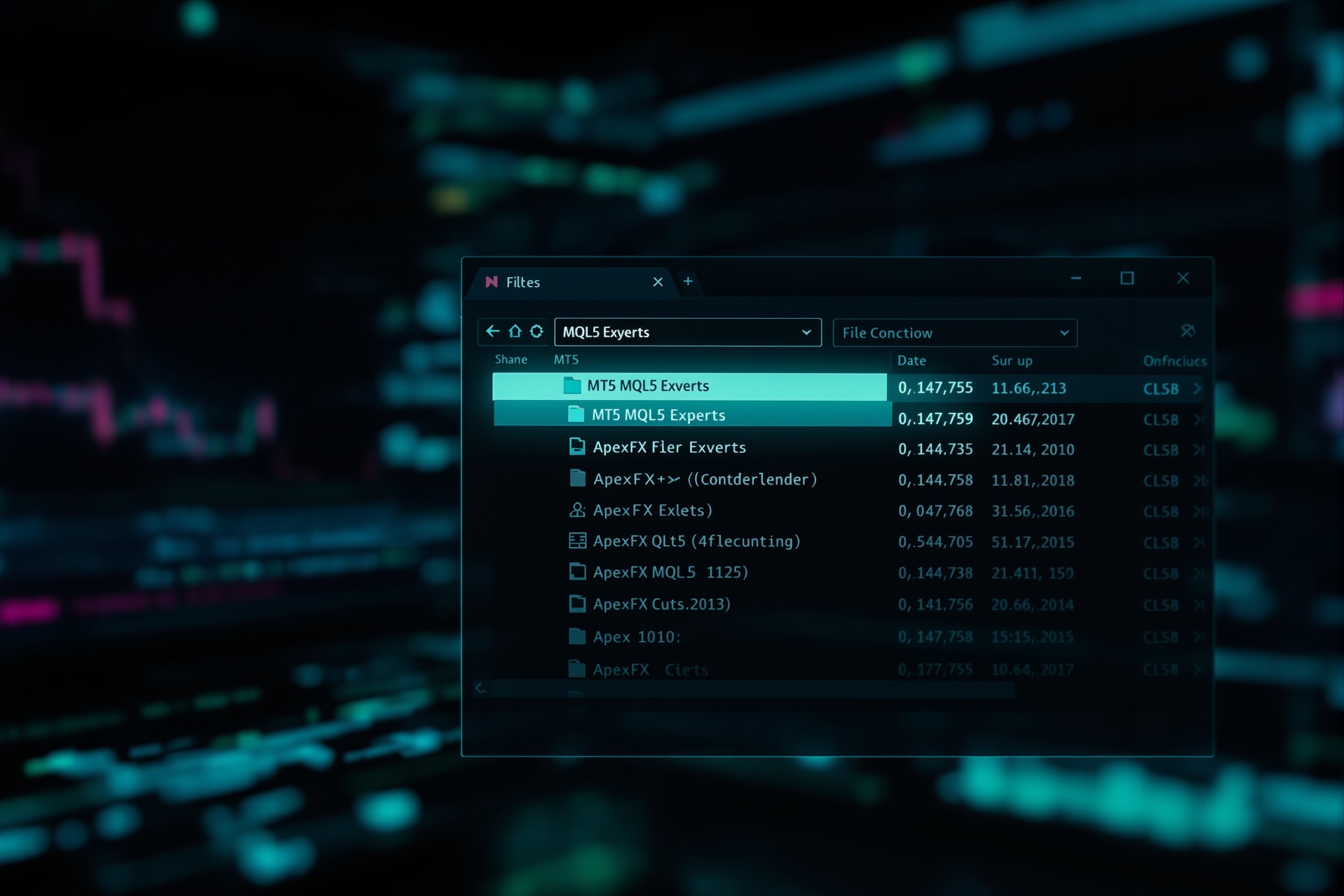
Wake the Root Directory
Navigate to the MT5 data folder, locate the Experts directory, and prepare the file structure that will house the ForexCentEA engine. This is the gate — if the directory is not awake, nothing else follows.
Execution Sequence

Implant the Core Engine
Place the ForexCentEA .ex5 compiled engine file into the prepared directory. The sandboxed environment ensures zero interference with other EAs or indicators — complete process isolation.
Execution Sequence

Engine Chart Binding
Attach the ForexCentEA engine to the EURUSDc chart on the M15 timeframe. This binding creates a permanent, non-transferable link between the engine and its designated trading instrument.
Execution Sequence

Physical Authorization
Enable automated trading and flip the final authorization switch. The engine breathes to life — from this moment, ForexCentEA executes trades autonomously, governed entirely by the protocol.
Execution Sequence
Phase Zero
Pre-Flight Checklist.
Before you touch a single ForexCentEA file, verify every item on this list. Missing even one prerequisite turns a 15-minute deployment into hours of frustrating troubleshooting. These are non-optional.
Hardware & Network
Low-Latency VPS
Windows Server 2019+ or Windows 10/11 Pro, minimum 2 vCPU, 4 GB RAM, 30 GB SSD. Network latency must be below 5ms to your broker's MT5 server.
Stable Internet Connection
Uninterrupted 24/7 connectivity. A single disconnection during an open trade can break the engine's state machine. Use a VPS with 99.9% uptime SLA.
Windows Update Disabled
Automatic restarts are deployment killers. Permanently disable Windows Update and system sleep on the VPS before installing anything else.
Software Stack
MT5 Terminal Installed
Download and install the latest MT5 build directly from your broker's website. Do not use the MetaQuotes generic version — broker-specific builds include custom symbol mappings.
EURUSDc Symbol Confirmed
Open the Market Watch panel (Ctrl+M), right-click and select "Show All". Confirm EURUSDc is visible and has active bid/ask spreads — if not, contact your broker.
Account
Cent Account Active
A Cent Account must be opened and funded. Minimum deposit: 100 USC (~1 USD). The account type MUST be "Cent" — Standard or ECN accounts are not compatible with the engine's lot-sizing module.
AutoTrading Permissions
In MT5: Tools → Options → Expert Advisors tab. Check both "Allow Automated Trading" and "Allow DLL imports". Without these, the engine cannot execute or access required system libraries.
VPS Always-On Confirmed
Verify your VPS is configured to auto-start on reboot and that MT5 is added to the Windows startup folder. The engine must survive unexpected restarts without human intervention.
Phase Three
Post-Deployment Verification.
The deployment is not complete until every item on this checklist passes. A silent error now becomes a catastrophic failure later — verify everything, trust nothing.
EA Smiley Face is Active
On the EURUSDc M15 chart, a blue smiley face icon in the top-right corner confirms the engine is loaded and authorized. If you see a red cross instead, automated trading is not enabled.
Initialization Log Confirmed
Open the Experts tab (Ctrl+T) and look for "ForexCentEA initialized successfully" in the log. This message confirms all modules loaded without errors and parameter validation passed.
No Error Messages in Journal
Switch to the Journal tab and confirm there are zero red error entries related to ForexCentEA. Warnings about spread or trading hours are normal — actual errors (red) are not.
First Trade Executed Correctly
Wait for the first trade to trigger (typically within 24 hours on M15). Confirm the entry matches the strategy: correct symbol (EURUSDc), correct lot size, hard stop-loss present.
Stop-Loss is Server-Side
Right-click the open position → Modify → confirm the SL level shows a non-zero value. Server-side stop-loss is the engine's primary risk control — if it's missing, stop trading immediately.
Margin Load Within Limits
Check the Terminal's Exposure tab. Margin level should remain above 1000% at all times. If it drops below 500%, stop and recalibrate your lot size — the engine's risk model is being violated.
Troubleshooting
Common Issues, Solved.
Every issue below has been encountered and resolved by real ForexCentEA deployers. Before you reach out for support, check if your problem is already documented here — chances are, the fix is one click away.
This means automated trading is not enabled. Go to Tools → Options → Expert Advisors and check both "Allow Automated Trading" and "Allow DLL imports". Then click the "AutoTrading" button on the top toolbar until it turns green. Restart MT5 and reattach the EA to the chart. If the problem persists, check that your broker allows EA trading on Cent Accounts — some brokers restrict it by default.
Right-click inside the Market Watch panel and select "Show All". Scroll through the expanded list to find EURUSDc. If it still does not appear, your broker may not offer this symbol. Contact their support and specifically request EURUSDc (the Cent Account variant). Standard EURUSD is NOT a substitute — the engine is calibrated exclusively for the "c" suffix symbol with its specific contract size.
This is expected behavior in low-volatility periods. ForexCentEA is a signal-driven engine — it does not place trades on a schedule; it waits for valid entry conditions. First, check the Experts tab for any "No valid signal" log entries, which confirm the engine is alive but waiting. If the Experts tab shows no ForexCentEA activity at all, the EA may not be properly attached — drag it from Navigator onto the chart again.
First, do not panic — the hard stop-loss protects every open position regardless of whether the EA is running. Reconnect to the VPS, restart MT5, and reattach the EA. The engine will resynchronize with open positions automatically. However, if you were disconnected for more than 4 hours, close any existing positions manually and restart the EA fresh. Configure your VPS to auto-login and auto-start MT5 on reboot to prevent this from recurring.
This usually indicates the Auto-Lot mode is overriding your manual setting. Check your input parameters: if "UseAutoLot" is set to true, the engine calculates position size dynamically based on account equity and risk percentage. To use a fixed lot size, set "UseAutoLot" to false and specify your desired lot in the "FixedLots" parameter. Note: on Cent Accounts, 0.01 lots = 1,000 units, which is very different from Standard Account lot sizing.
This is a protective filter, not a bug. The engine has a built-in spread cap of 2.5 pips on EURUSDc. When the spread exceeds this threshold (typically during news events or rollover periods), the engine intentionally skips the trade to avoid adverse entry conditions. This is one of the features that keeps the win rate above 69%. Do not disable this filter — it has prevented hundreds of losing trades in the engine's history.